
The Reports screen (home screen) displays a list of existing reports and allows you to create reports and search for reports.
Report ID: The unique name of the dosimetry report
Version: Report version number. Check the ‘Include all versions’ box to see all versions of reports; uncheck to see only the most current versions.
Status: A report status can be ‘Incomplete’ or ‘Complete’. A ‘complete’ report is a processed report that cannot be altered. Incomplete reports can be edited and you can add dosimeter measurements.
Date and Time: The date and time of the last view/edit to the report
Last edited by: The name of the user to last edit the report
Pathway: The radiation pathway for the report
Batch: The dosimeter batch ID for the report
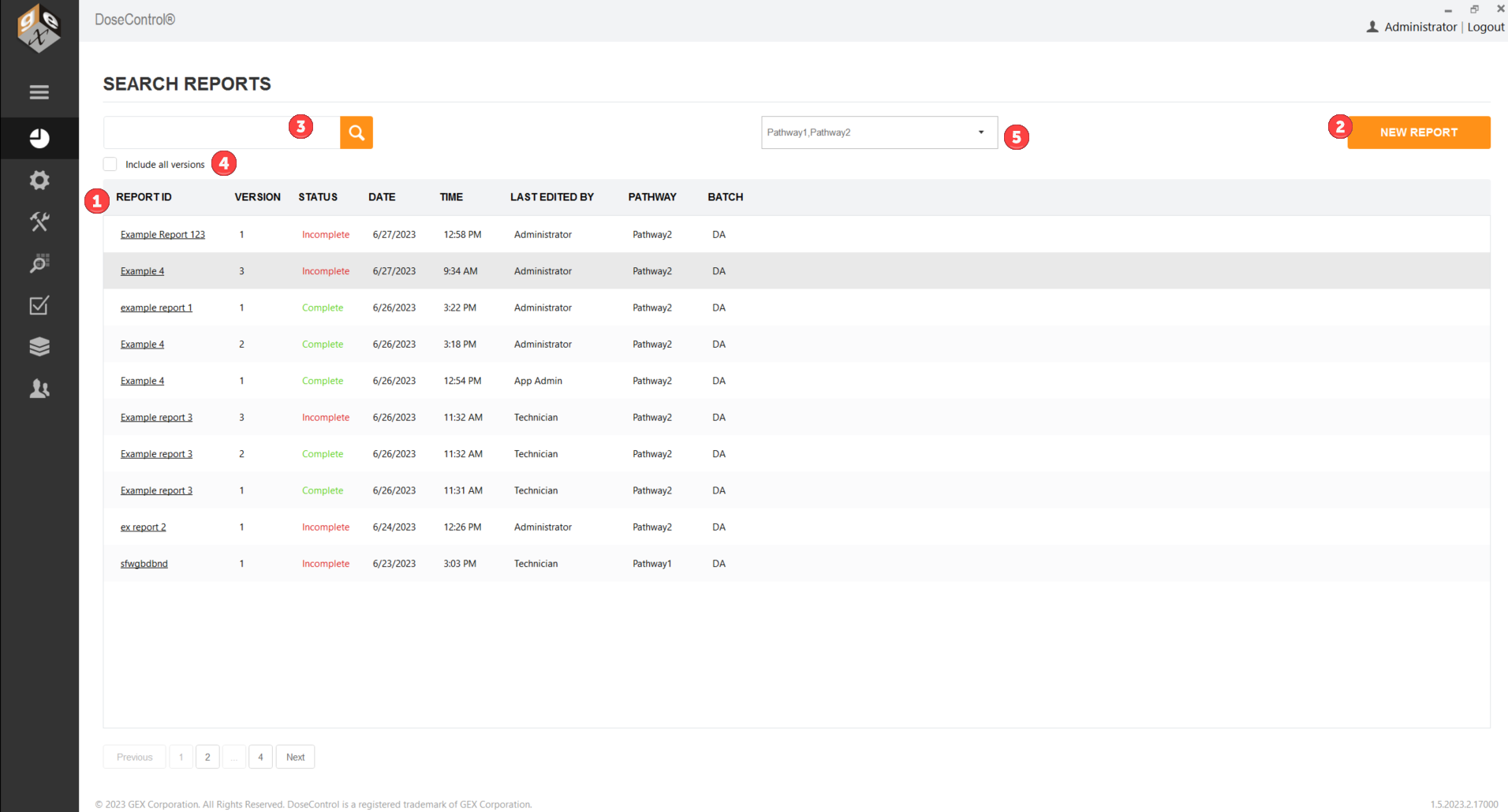
Report Screen actions:
1 Click on a Report ID to open a dosimetry report and go to the active measurement screen.
2 Click ‘New Report’ to begin a new report, fill in the relevant dosimetry process information for that report, and go to the active measurement screen.
3 Search existing reports. Type a partial or full Report ID or dosimeter ID.
4 Click to include all report versions in the list
5 If ‘Report Search Filtered by Pathway’ is active, the dropdown is here.