Prerequisite - Have you installed MS SQL Server Express?
These instructions are intended for DoseControl Basic License users to download and install Microsoft SQL Server Management Studio (SSMS) 2022 on a single PC. SSMS 22 is compatible with SQL Server 2014 (12.x) and later versions.
Install SQL Server Management Studio (SSMS)
Why should I install SSMS?
You may be curious as to why you need to install something else other than SQL Server itself. SQL Server, like other modern relational databases, uses a client-server architecture. The database itself is the server and contains all the data and the capability to add, modify, delete, and access the data. A client is needed to connect to the database and perform specific commands. The most popular client by far for SQL Server is Microsoft’s SQL Server Management Studio (SSMS), which you will install in this section.
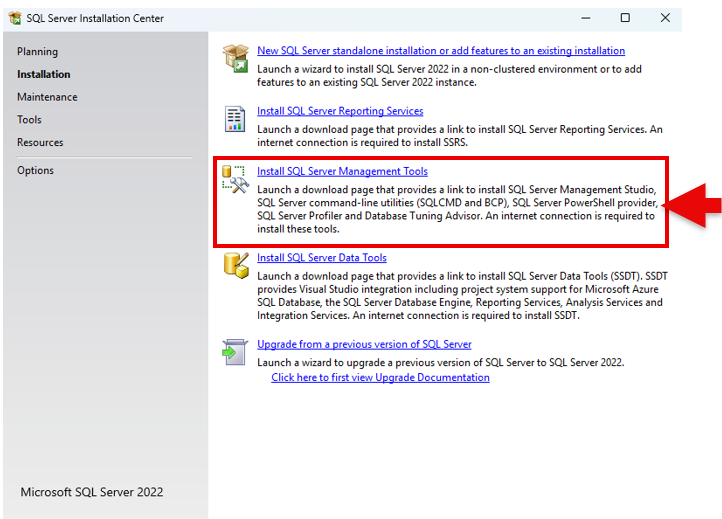
OPTION 1 - Install SSMS from the SQL Server Installation Center
When you install MS SQL Server, you will see an option to “Install SQL Server Management Tools” in the SQL Server Installation Center window. After you finish installing SQL Server, simply click on the link and follow the prompts to install SSMS! The SQL Server Installation Center window should still be open (if it is not, then you can launch it from the start menu).
OPTION 2 - Download the SSMS installer and install SSMS
1 Download SSMS 22 from the Microsoft website
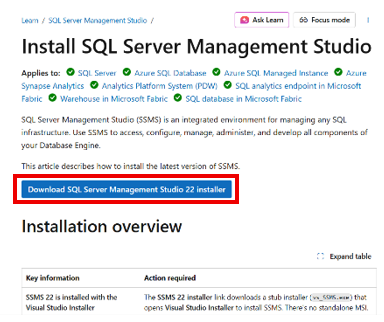
Navigate to the Microsoft website, Install SQL Server Management Studio page. Link is here: https://learn.microsoft.com/en-us/ssms/install/install
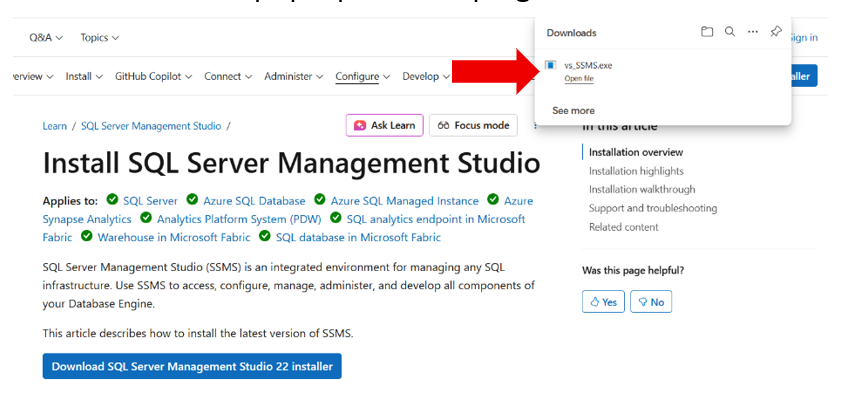
Click on the blue download button.
2 Open the downloaded file pop-up in the top right of the screen.
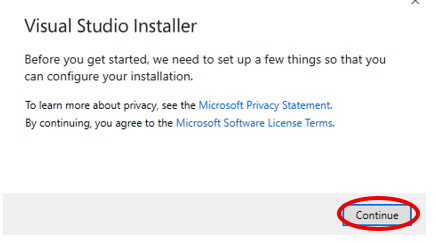
3 After allowing the app to make changes to the computer you will get a pop-up. Simply hit continue.
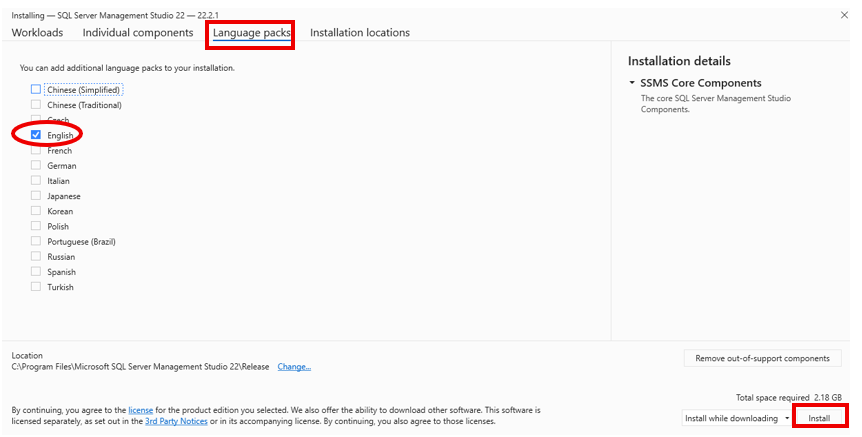
4 Navigate to Language packs and select “English.” Then click install at the bottom right.
5 The installation will take a few minutes. After the installation is complete, click OK.
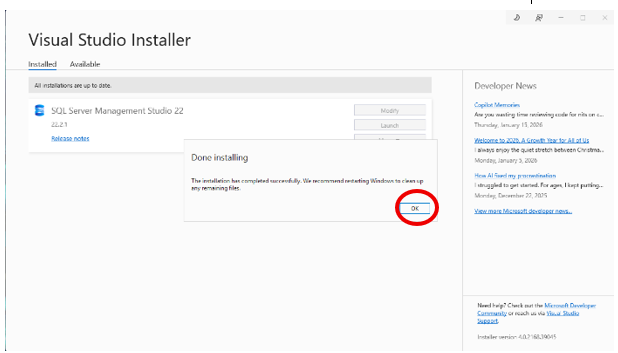
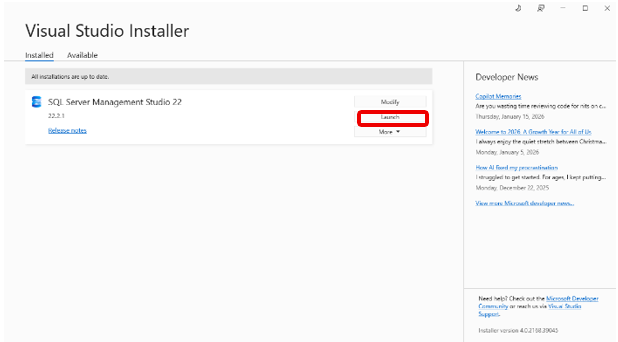
6 You will see SQL Server Management Studio 22 is installed. Click launch. It will prompt you to log in. Please log in.
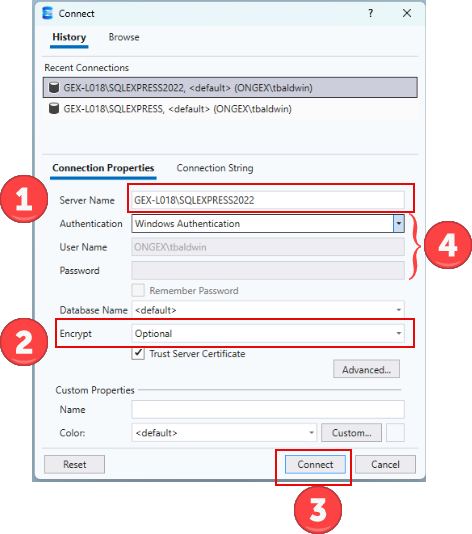
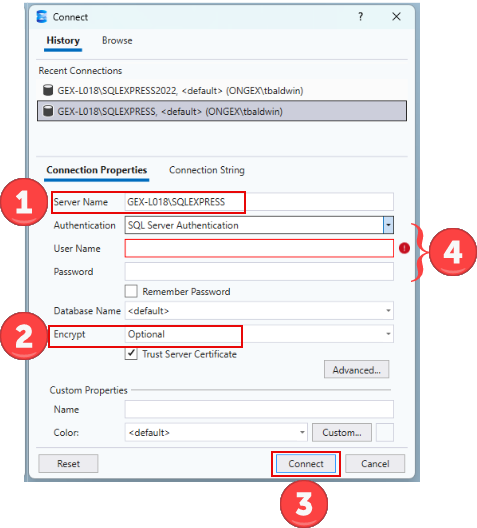
7 Continue setting up SSMS. You need to enter information to connect SSMS to your SQL Server.
-
Enter the SQL server name. The server name is your PC name\instance name given when you installed SQL Server (see ‘Instance’ in the instructions for installing SQL Server 2022).
-
Change encrypt from “Mandatory” to “Optional”.
-
Click connect.
-
NOTE: You can choose to connect SSMS to your SQL Server using Windows Authentication or SQL Server Authentication. Windows Authentication uses the logged in user account to connect, and SQL Server Authentication uses the given SQL username ‘sa’ and password setup during the SQL Server installation (see 'Database Engine Configuration' in the instructions for installing SQL Server 2022).