Before you install MS SQL Server Express, make sure your PC meets the DoseControl Software Platform Requirements.
These instructions are intended for DoseControl Basic License users to download and install Microsoft SQL Server 2022 Express on a single PC.
How DoseControl works
DoseControl software is installed on a PC and connects to a Microsoft SQL Server database using a connection string entered into the software. DoseControl data is stored in its application database. This allows you to manage, backup, restore, and maintain permanent records of your dosimetry data!
SQL Server Overview
SQL is a database that resides on a centralized server and is accessed by multiple PCs. SQL is licensed to companies in many ways, and you will be responsible for determining and managing your licensing. GEX does not sell or license SQL. For in-depth information about the various SQL Server types and options, please visit the Microsoft website official Microsoft site "Editions and supported features of SQL Server 2022".
Introduction to Microsoft SQL Server 2022 Express
Many Basic License users of DoseControl use Microsoft SQL Server Express, a lightweight and free edition of SQL Server, for the DoseControl application database.
Microsoft SQL Express is available from Microsoft with any licensed Windows installation.
-
A SQL Express database cannot be larger than 10 GB size; this size is sufficient for most users for many years of data.
-
A SQL Express database cannot be shared between PC’s.
-
You can easily migrate to SQL standard from SQL Express at any time by paying the license fee.
IMPORTANT
You must perform all the following installation and configuration steps using an account that has administrative privileges for the computer that will host SQL Server. For Basic License users, this is typically the same computer on which DoseControl is being installed.
Download and Install Microsoft SQL Server Express
1 Log in as an administrator on the PC.
IMPORTANT
You must perform all the following installation and configuration steps using an account that has administrative privileges for the computer that will host SQL Server. For Basic License users, this is typically the same computer on which DoseControl is being installed.
2 Download SQL Server Express installer
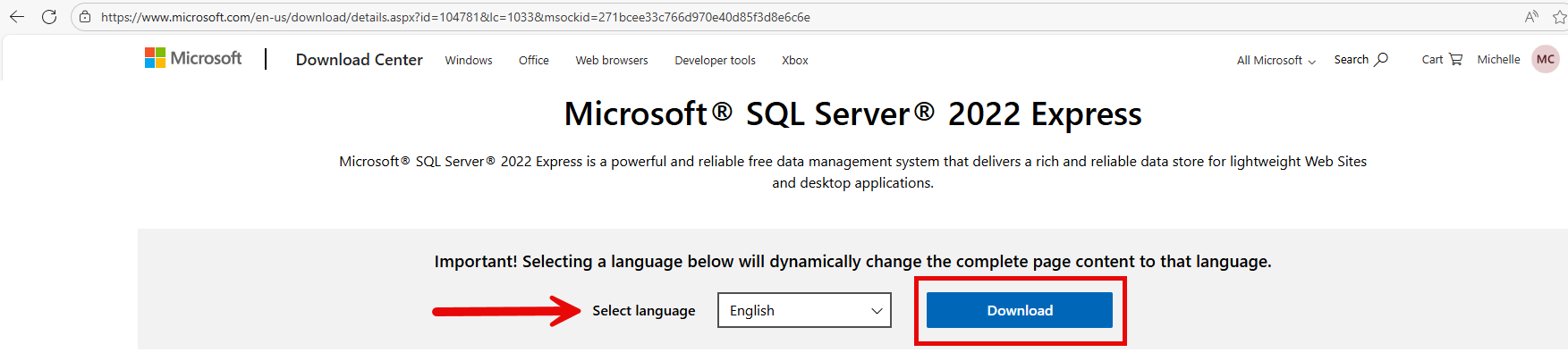
Link to Microsoft SQL Server 2022 Express download page. Or use a browser search engine to find “Microsoft SQL Server 2002 Express download”.
Go to the Microsoft SQL Server Express download page, select the English language version and click the “Download” button to download the installer.
Select the English language version of SQL Server. DoseControl may run on SQL in other languages, but GEX has not been formally tested (customers have sometimes been successful) and GEX is unable to support users running other languages.
3 Select Installation Type
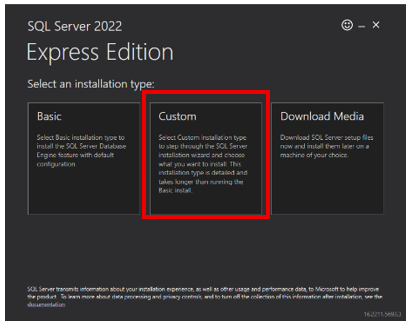
When you execute the downloaded file, you will be prompted for an administrator account. The installer will open a window. The window offers three possible ways to install SQL Server Express Edition which are Basic, Custom and Download Media. Select “Custom”.
4 Select a location for installing.
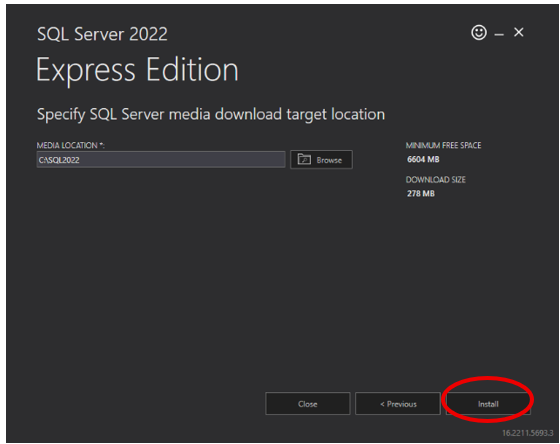
Keep the default Media Location and click the “Install” button. The installation process will begin, and you will see a progress window.
5 The SQL Server Installation Center opens
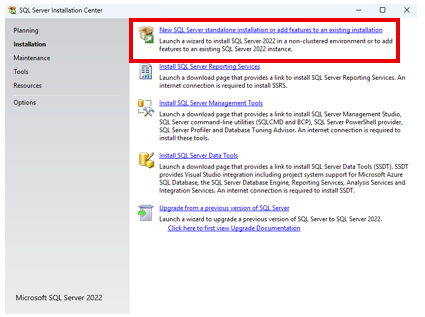
In the installation center window, click the “New SQL stand-alone installation” link. The SQL Server 2022 Setup window opens.
6 License Terms
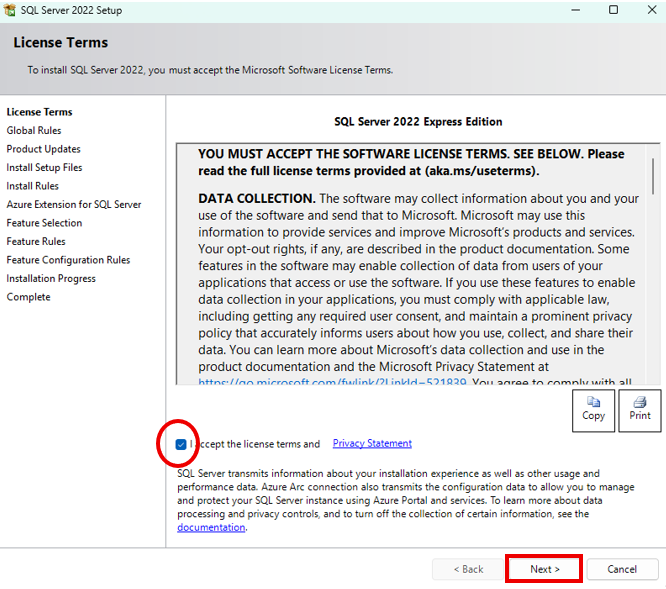
Accept the license terms and click “Next”. The Global Rules page will open and display a progress bar, and then the Microsoft Update page will open.
7 Microsoft Update
Select the option to “Use Microsoft Update to check for updates (recommended)” and click “Next”. The Install Setup Files window will open and display a progress bar, and then the Install Rules page will open
8 Install Rules
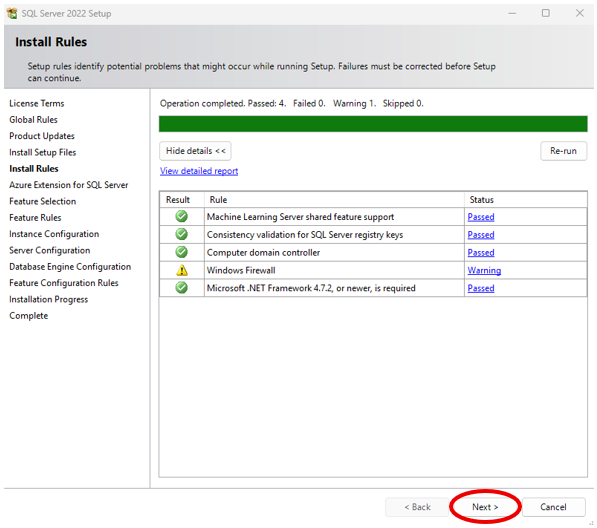
On the Install Rules page, each Rule should have a Status of “Passed”, but you may see a warning for Windows Firewall. Disregard this warning and click “Next”.
9 Uncheck Azure extension for SQL Server.
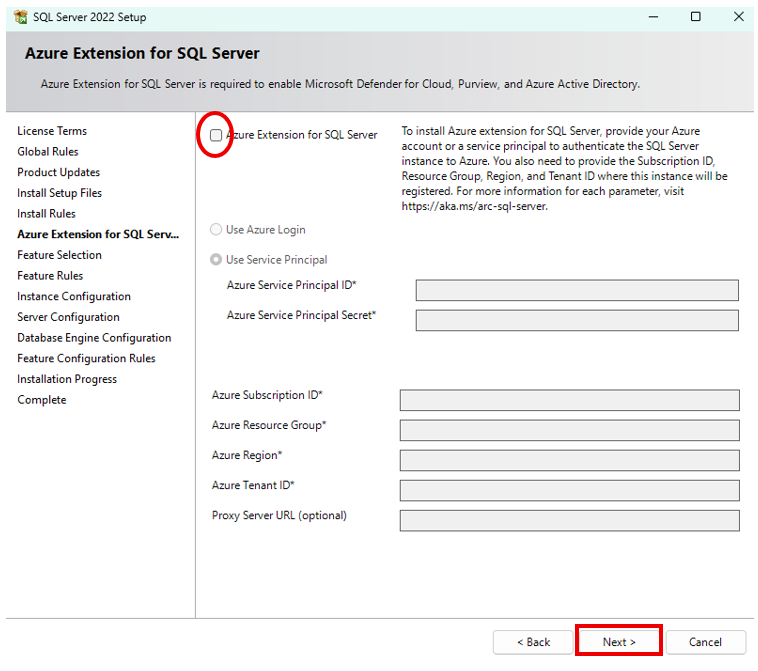
Uncheck Azure extension for SQL Server. Then click “Next”.
10 Feature Selection
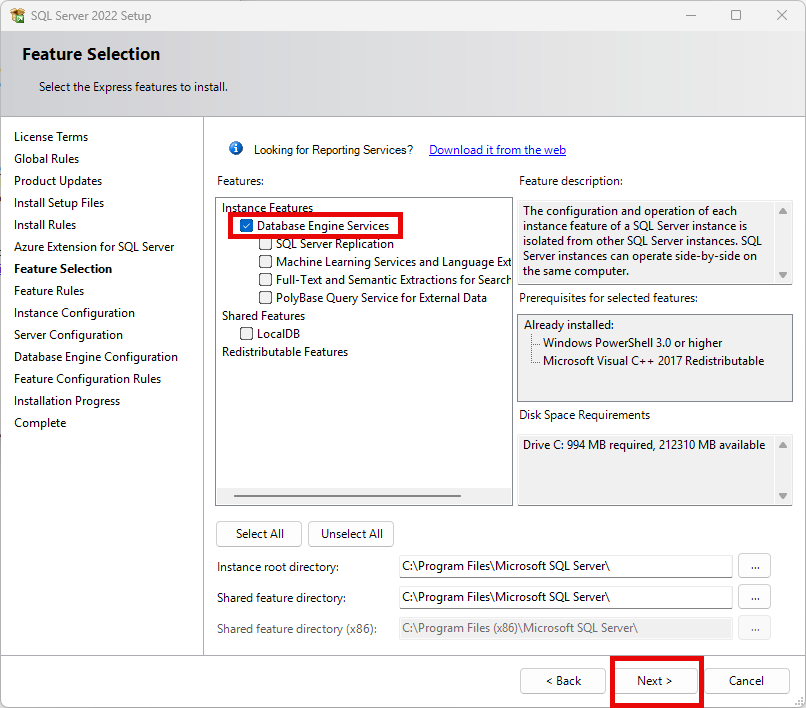
On the Feature Selection page, click the “Unselect All” button. In the Features list, only select the following Instance Features: Database Engine Services.
11 Instance Configuration
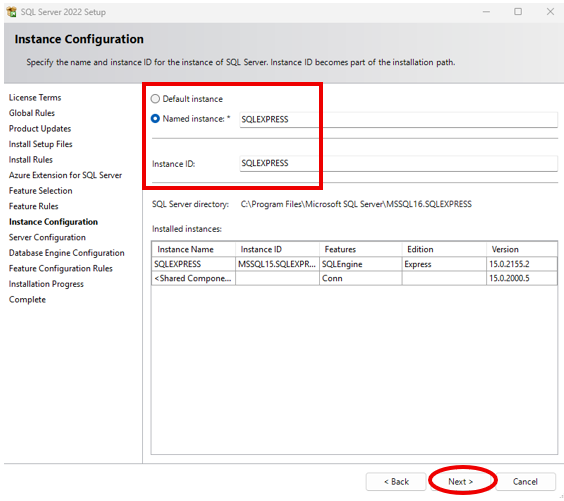
If not already selected, choose “Named Instance” and enter “SQLEXPRESS” for both the Named Instance and the Instance ID. Then click “Next”.
12 Server Configuration
Change no values and click “Next”.
13 Database Engine Configuration
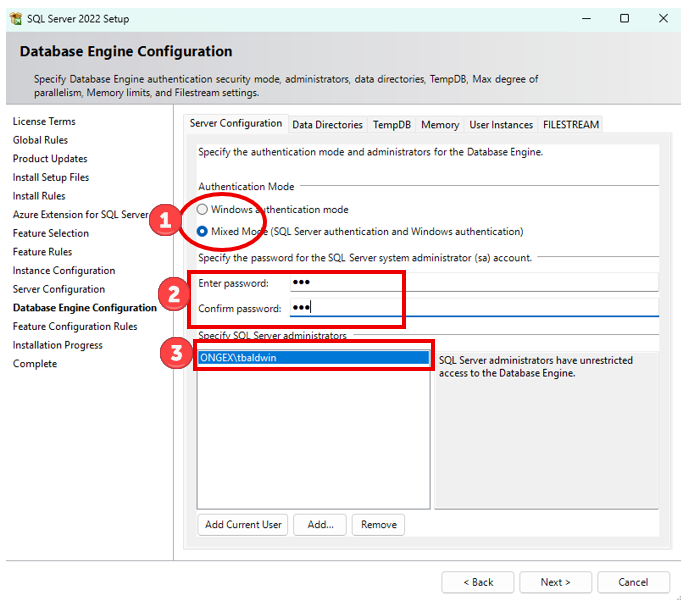
On the Server Configuration tab, 1) select “Mixed Mode”, 2) specify the password for the SQL Server system administrator (sa) account, and 3) if the current user installing SQL is not displayed in the “Specify SQL Server administrators” list, click the “Add Current User” button.
Do not change any of the values on any other tab in the Database Engine Configuration page. Click “Next”. The Feature Configuration Rules page will open very briefly, and then the Installation Process page will open.
IMPORTANT: Ensure that you make a copy of the SQL Server ‘sa’ password and keep it in a secure location. This is the password specific to this MS SQL Server and will allow you to manage this MS SQL Server instance. (Note: this is not the DoseControl admin account password.)
14 Installation Process
SQL Server Express is now being installed and progress bar will appear. When the process completes the Complete page will open.
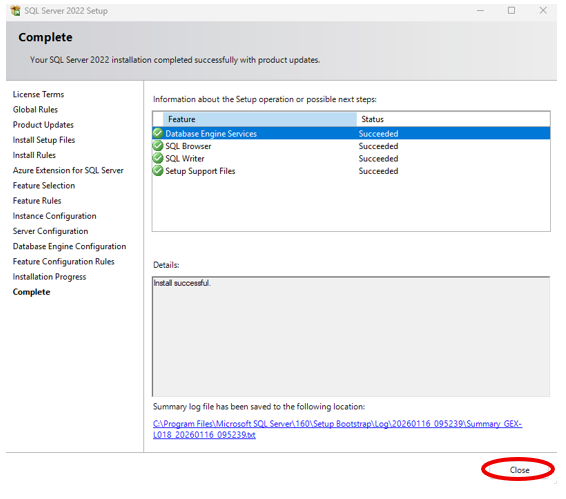
15 Complete
The Status for each Feature in the list should be “Succeeded”. Click the “Close” button. If a restart is required, perform the restart.